Using Ledger Hardware Wallets to Redeem BTC Staked on Core
This user guide will walk you through the step-by-step process of redeeming your staked Bitcoin (BTC) on the Core Testnet using a Ledger hardware wallet.
Before you begin, ensure your Ledger device is updated and the Core Testnet app is installed. You must use the same primary BTC wallet address originally used for staking BTC. To learn how to stake BTC using Ledger on Core Testnet, refer to the official guide here.
Before You Begin: Important Reminders
To ensure a secure and seamless experience, please note the following key requirements:
-
Use Only Supported Ledger Devices: BTC staking, redemption, and redelegation on Core Testnet are supported only on specific supported Ledger hardware wallets with the latest firmware. Always update your device via Ledger Live before use.
-
Always Use the Ledger’s CoreDAO App: You must use the Ledger Core Testnet app (not the Ledger Bitcoin app) for both staking, redeeming, or redelegating BTC on Core Testnet. The Bitcoin app does not support redemption operations of staked BTC and may prevent successful redemption.
-
Staking BTC Only from the Primary BTC Wallet Address: Currently, BTC staking, redemption, and redelegation on Core Testnet through Ledger are supported only from the primary BTC address of the Ledger device. Secondary or derived addresses are not compatible.
Supported Ledger Hardware Wallets
The following Ledger hardware devices currently support staking, redemption, and redelegation of BTC on the Core Testnet. For the best experience and compatibility, as a best practice, ensure your device is running the latest supported or available firmware.
| Ledger Device | Firmware Version (at the time of writing) |
|---|---|
| Ledger Nano S+ | 1.4.0 |
| Ledger Nano X | 2.5.0 |
| Ledger Stax | 1.8.0 |
| Ledger Flex | 1.4.0 |
The firmware versions listed above reflect the latest available version at the time of writing and are subject to change. Before staking, redeeming, or redelegating BTC on Core Testnet using your Ledger device, as a best practice, update to the latest or a supported version to ensure compatibility and security. Always check Ledger Live for the most current updates. Refer here for more details on updating the Ledger drive firmware.
## Prerequisites
Before you begin, make sure you have:
- A supported Ledger device with the latest/supported firmware.
- Ledger Live is installed and correctly set up on your computer.
- You have previously staked BTC on the Core Testnet using your Ledger device.
- If you're using Xverse Wallet, your Ledger device is already connected and added to it.
- The timelock period for your locked BTC has expired, making it eligible for redemption.
⚠️ Note: You will not be able to redeem or redelegate staked BTC until the designated timelock has expired.
Steps to Redeem Expired Timelock BTC
After the timelock period for BTC has expired, users are eligible to redeem or redelegate their delegated Bitcoin assets. You must use the same Ledger wallet address used for staking BTC to redeem your BTC after the timelock expiry.
Step #1: Connect Core Wallet to the Staking Website
-
Navigate to the Core Testnet Staking Website.
-
Connect your Core Testnet wallet to the Core Testnet Staking website. Remember to use the same wallet that you had used at the time of staking BTC.
-
Click on the "Connect" button in the top right corner of the website.

- From the displayed wallet modal, select the wallet of your choice configured for use with Core Testnet.
Step #2: Navigate to Testnet Staking Dashboard
-
Ensure your Ledger device is installed with the latest or supporting firmware and connected to your computer with Ledger’s primary Bitcoin (BTC) address.
-
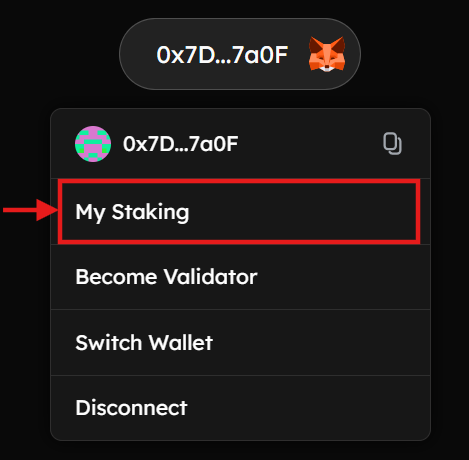
On the Core Testnet Staking website, hover over your connected wallet in the top right corner and click "My Staking".
Step #3: Navigate to Testnet BTC Staking Records
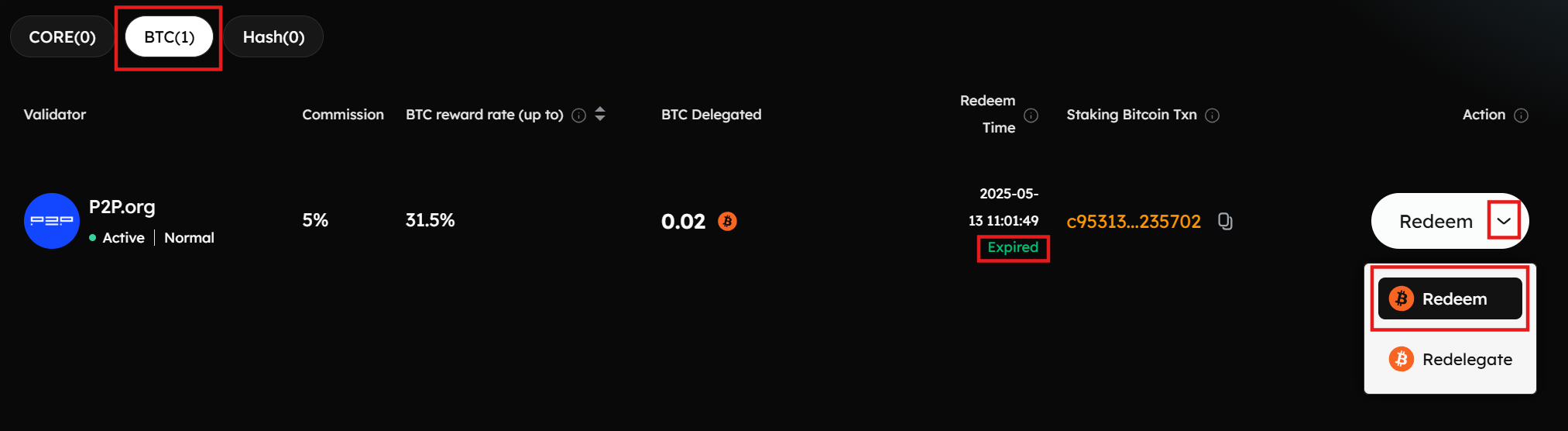
- On the "My Staking Dashboard" page, select "BTC" records from the displayed tabs.

- This tab lists all the BTC staking records and the validators that you have previously delegated BTC to. Look for any ‘Expired’ records under ‘Redeem Time,’ and proceed to click ‘Redeem’ under ‘Action.’
Step #4: Verify BTC Staking and Redemption Details
-
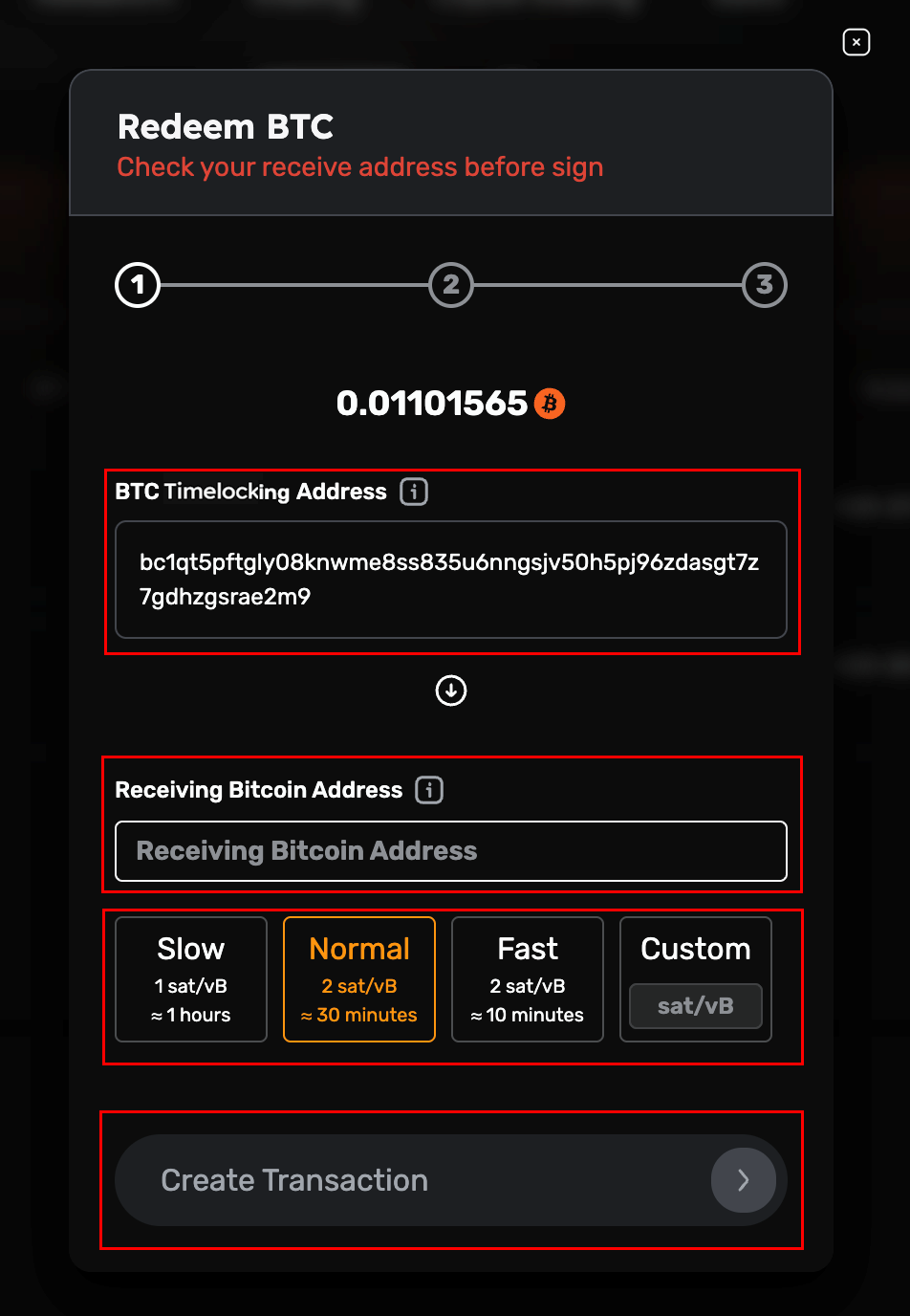
On the displayed "Redeem BTC" modal, cross-check the BTC staking address, the BTC Amount that will be redeemed, and the Receiving Bitcoin address. To redeem the BTC, you must connect to the same Bitcoin address as the one initiating the Bitcoin staking transaction.
-
Set your Receiving Bitcoin Address to receive the unlocked BTC. This must be the same as the address that initiated the Bitcoin staking transaction and must be the Native Segwit address type.
-
Set your transaction speed priority, and click "Create Transaction".
Step #5: Sign the BTC Unlock Transaction on Ledger Device
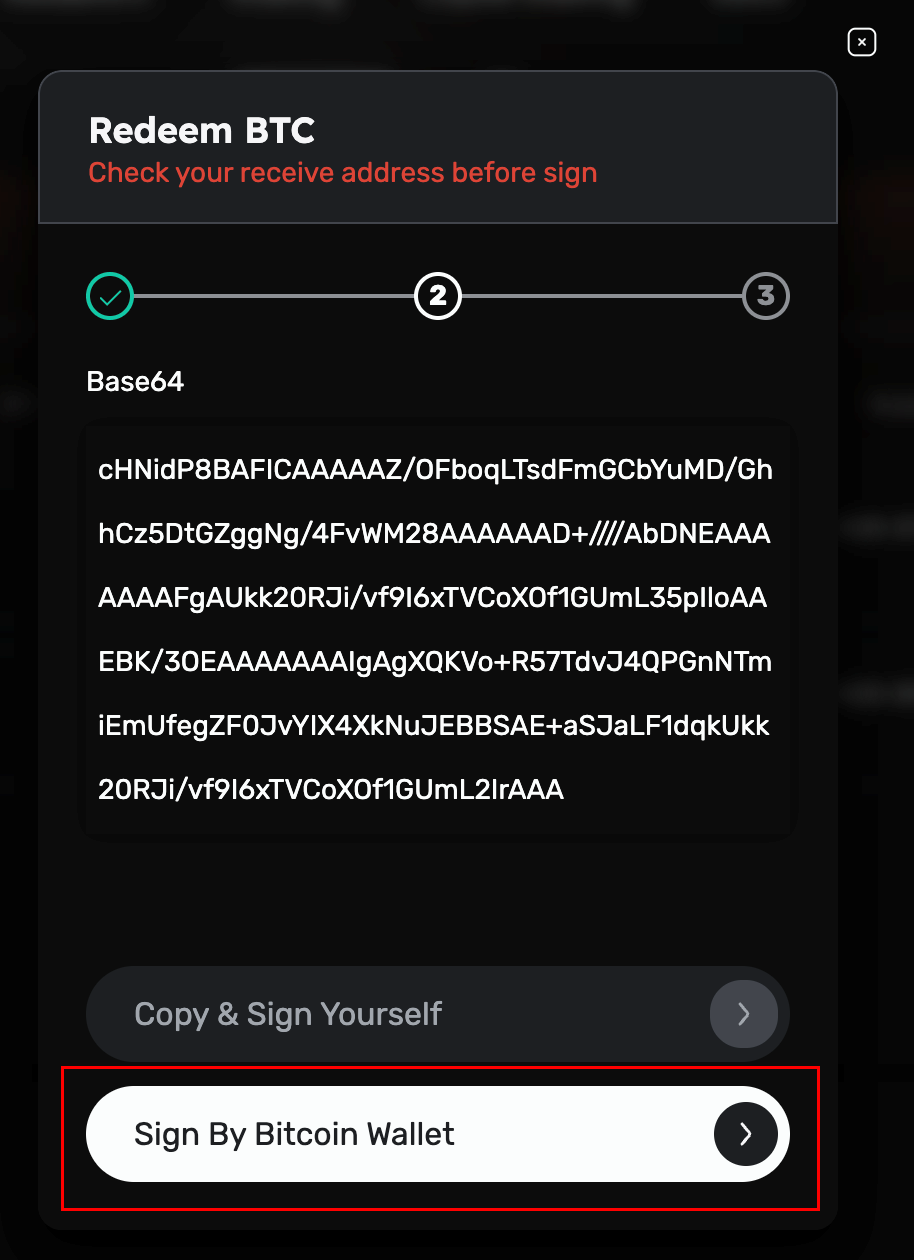
- Click "Sign By Bitcoin Wallet" to sign the BTC redemption transaction from your Ledger device.
Step#5: Connect Ledger Device for Redemption of Staked BTC
Option #1: Connecting the Ledger Device Directly to the Staking Website
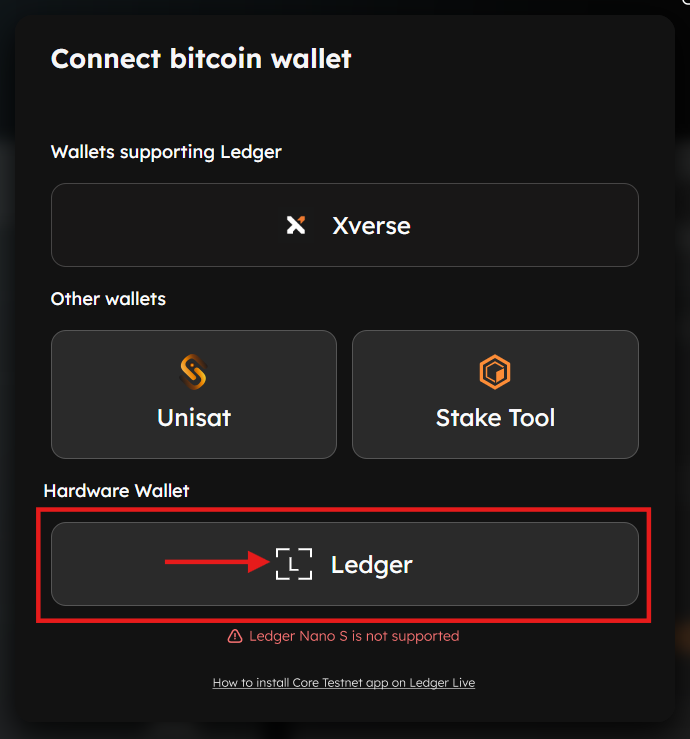
- To connect your Ledger device directly to the Core Testnet Staking website, click on "Ledger" under the "Hardware Wallets" section from the displayed wallet model. Ensure your Ledger device is connected, unlocked, and the Ledger Core Testnet app is open on your device.
Option #2: Connecting Ledger Device Using Xverse Wallet
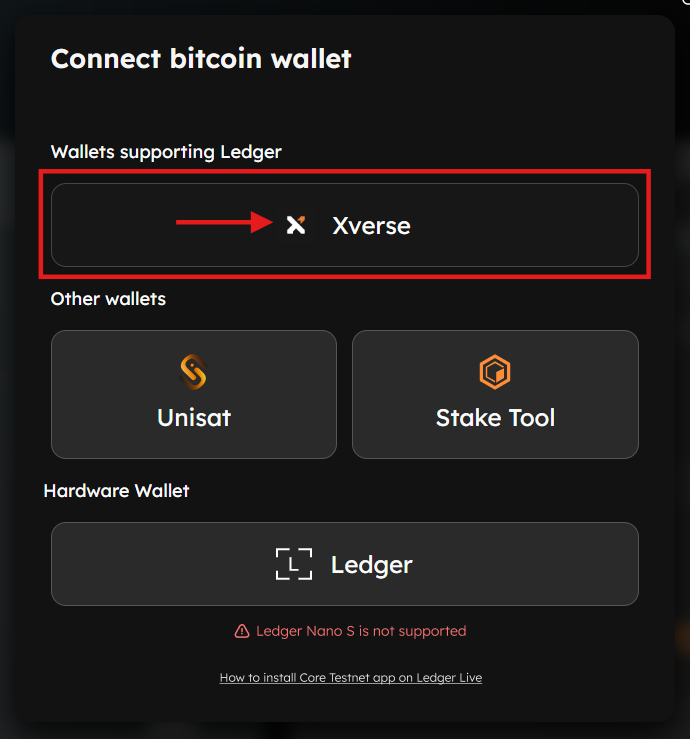
Alternatively, you can use Xverse Wallet to redeem BTC directly from your Ledger device. To achieve this, users must first add their Ledger device to their Xverse wallet as a prerequisite. Refer to the official guide by Xverse to connect your Ledger device with Xverse.
- To connect your Ledger device using the Xverse wallet, click on "Xverse" under the "Wallets Supporting Ledger" section from the displayed wallet model. Ensure your Ledger is connected, unlocked, and the Ledger Core Testnet app is open on your device.
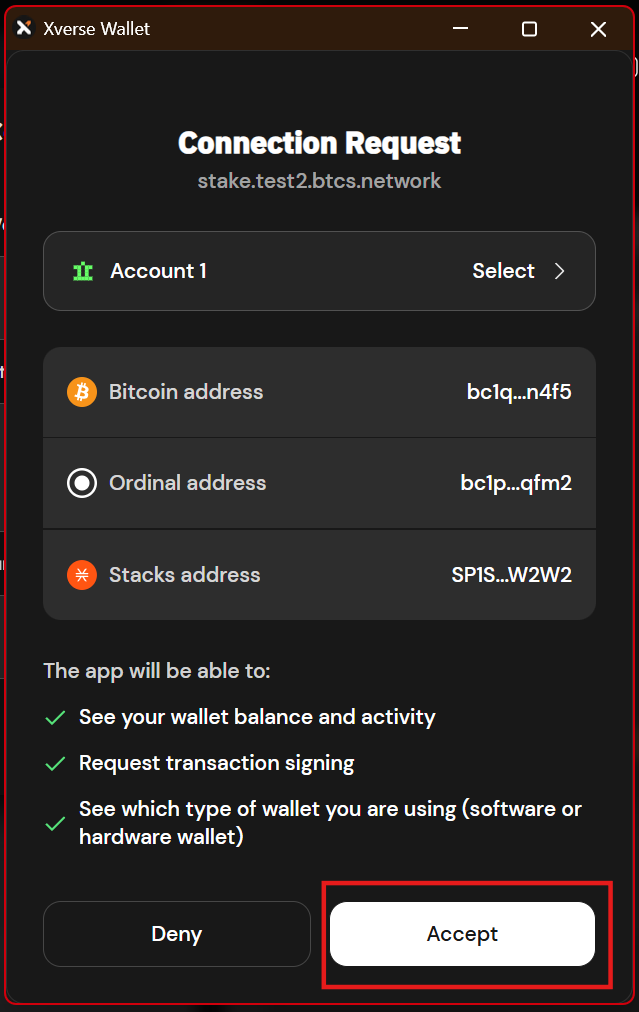
- Unlock your Ledger device and confirm the connection via the Xverse wallet extension.
Step#6: Review & Approve Transaction on Ledger Device
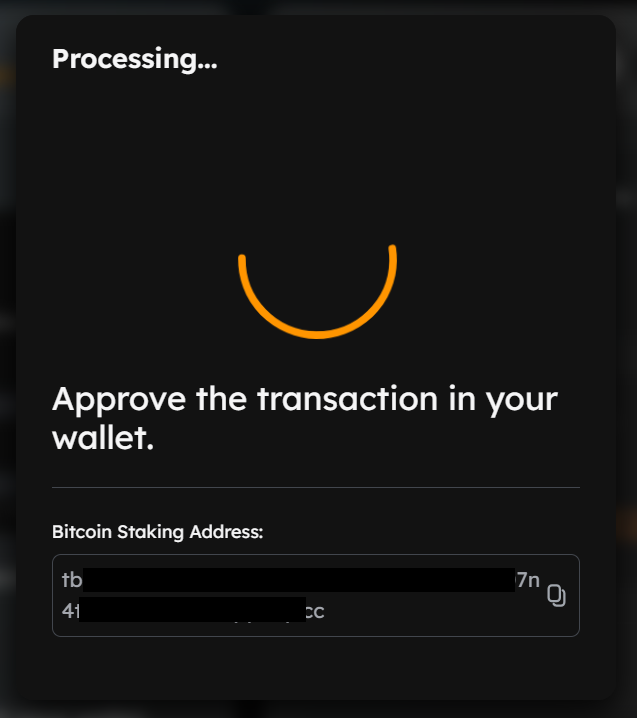
- After connecting your Ledger device, ensure that the device is unlocked and the Ledger Core Testnet app is open. You will be prompted on the screen to approve the transaction.
Using Xverse Wallet
- If using an Xverse wallet, review the transaction. Verify details and click "Confirm" on the wallet notification on your browser.
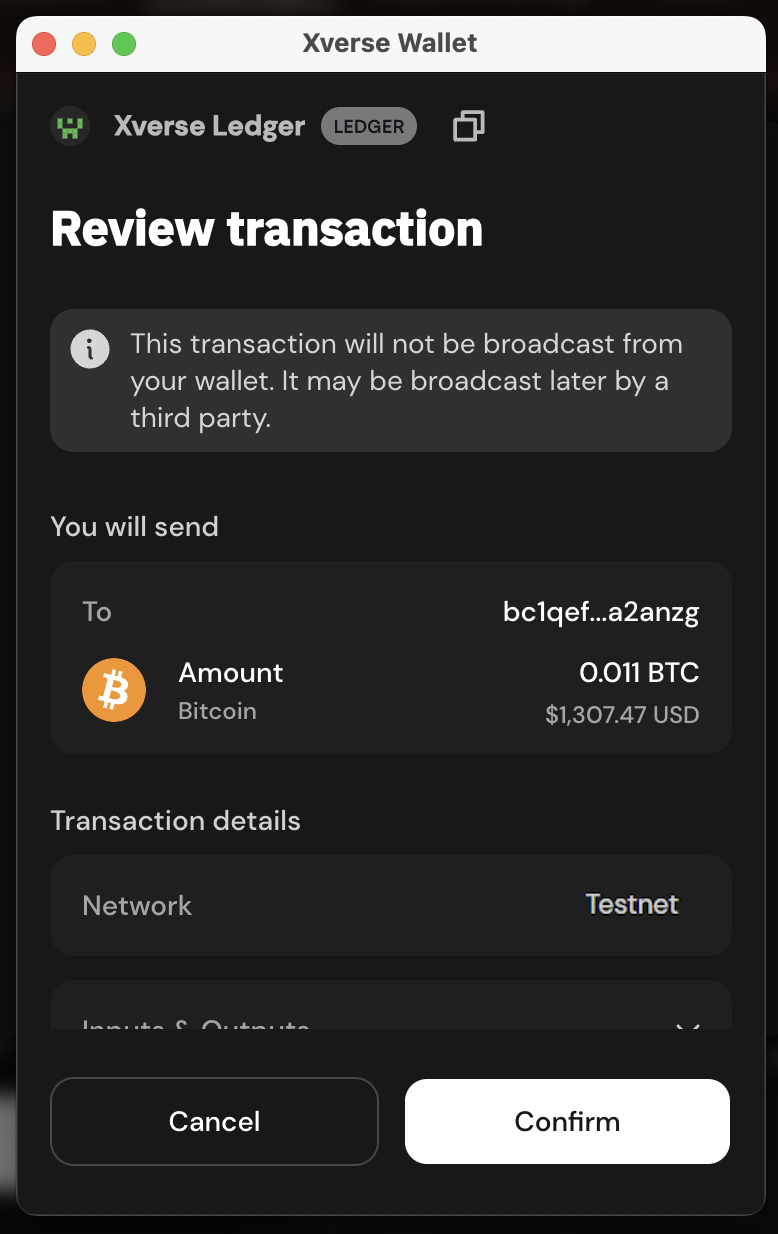
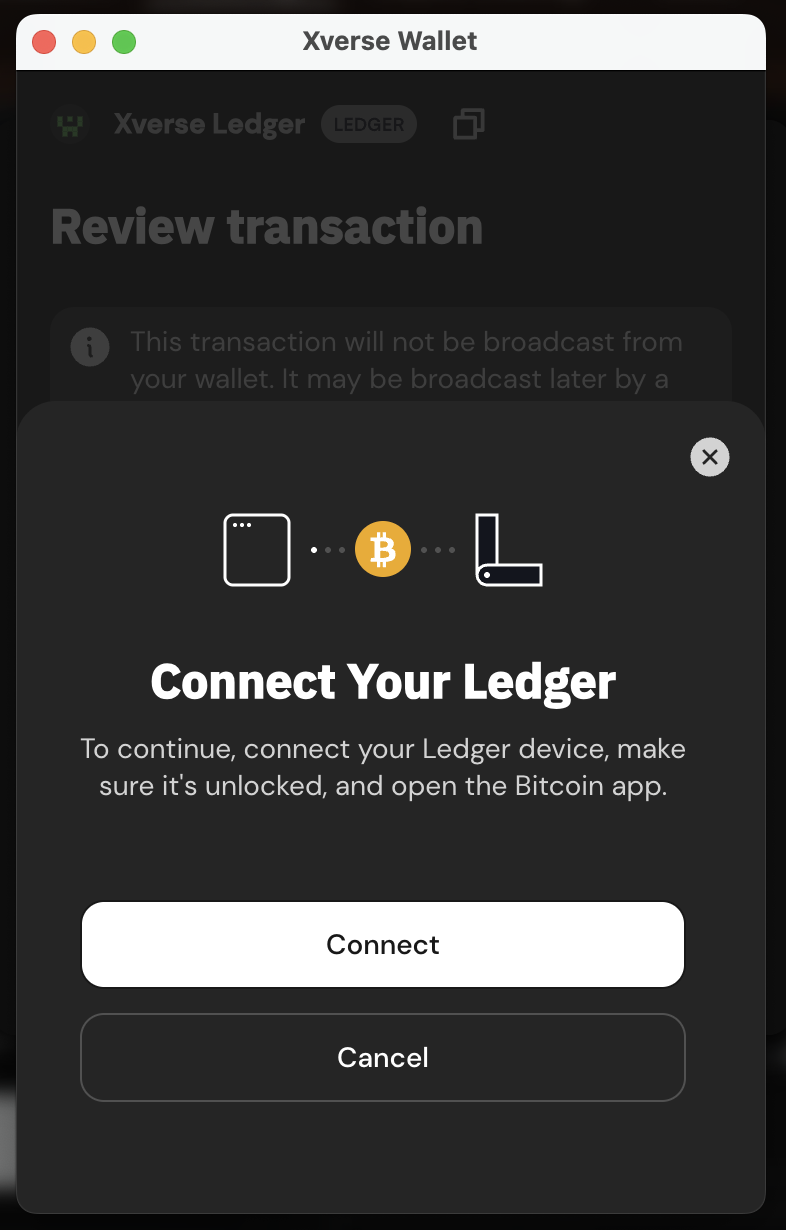
- Click "Connect" on the "Connect Your Ledger" modal.
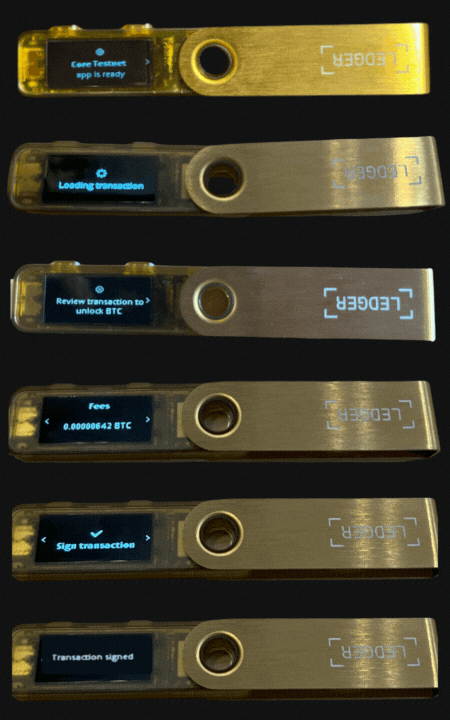
- Proceed to confirm and approve the transaction on your Ledger device.
Approve BTC Staking Transaction on the Ledger Device
-
Sign the transaction with your Ledger device wallet after reviewing the transaction details.
-
Always use the Ledger Core Testnet app, not the Ledger Bitcoin app, to redeem the staked BTC on the Core Testnet. The Bitcoin app lacks support for redemption/redelegation operations. Further, the Ledger Core Testnet app supports Clear Signing, which displays all transaction details (such as amount, addresses, and fees) directly on your Ledger device screen. This ensures full transparency and allows you to verify and approve the transaction, thereby safeguarding your assets from unintended or malicious actions. For more details on Clear Signing, refer here.
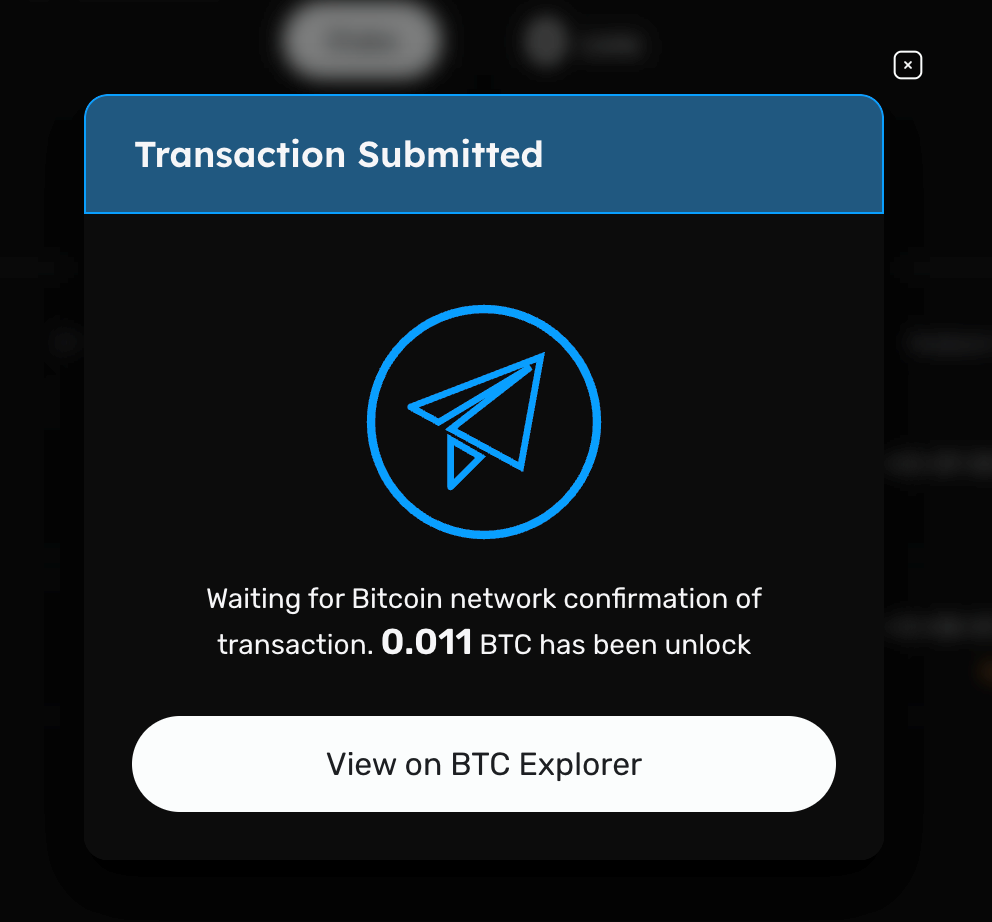
- Once the transaction is approved on your Ledger device, the website will display a "Transaction Submitted" notification, confirming that your BTC redemption request has been successfully initiated.
- After the Bitcoin block of the redemption transaction is confirmed, verify that the redeemed BTC has returned to your receiving Bitcoin address. (This may take a few minutes). You can also view the transaction details on the BTC Explorer.
Conclusion
By following this guide, you’ve successfully redeemed staked BTC on the Core Testnet using your Ledger hardware wallet. The combination of Core’s Self-Custodial BTC Staking model and Ledger’s industry-leading security, enhanced by Clear Signing via the Ledger Core Testnet app, provides maximum transparency, confidence, and safety. Your successful redemption marks a secure and transparent interaction with Core’s decentralized infrastructure. You now have complete ownership of your reclaimed BTC.