Hardware Wallet Integration on Core FAQs
1. Why does my Ledger wallet keep creating new addresses?
Ledger devices automatically generate a new address each time you connect them. This behavior can cause redemption transactions to fail because the redemption process requires the original staking address that was used to initiate the BTC staking transaction. Therefore, it is recommended always to record the Bitcoin address you used for staking.
2. How can I find my original staking address?
There are multiple ways to locate your original Bitcoin staking address.
-
Navigate to your BTC staking records on the My Staking dashboard on the Core Staking Website.
-
Copy the Bitcoin Staking Transaction hash. Clicking on it will navigate the user to transaction details on the Mempool.Space Bitcoin Explorer.

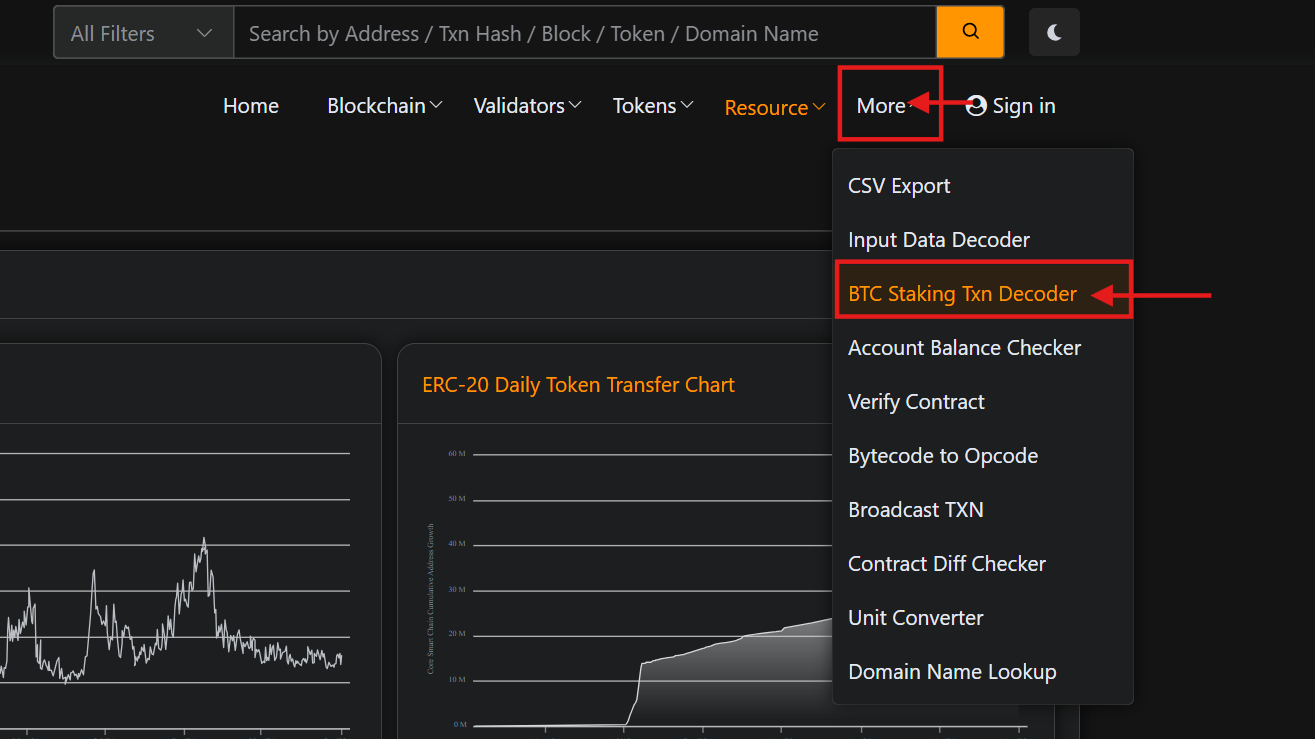
- Navigate to Core Scan Block Explorer. From the top navigation menu, click "More" and from the drop-down menu select "BTC Staking Tx Decoder".
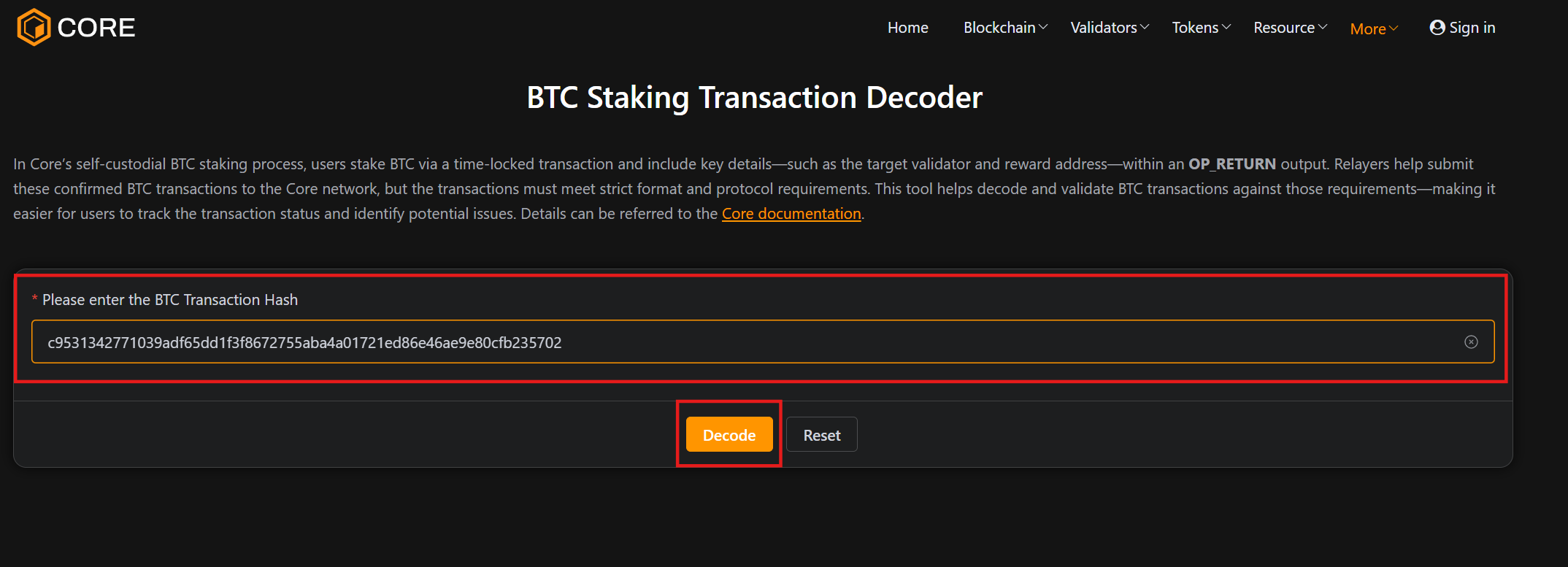
- Paste the copied Bitcoin Staking transaction hash and click "Decode".
- Under the "Decoded Results" section, "Input Address" is the BTC staking address you have used for initiating the staking transaction. Note that this is not your public key, just the specific address used when the timelock transaction was created.

3. Why does my redemption transaction fail?
If you input a new receiving address instead of the original staking address, the redemption transaction will not complete. To successfully redeem your timelock expired BTC ensure that the "BTC Receiving Address" you provide during redemption matches the original Bitcoin staking address, the address that initiated the staking transaction. You can confirm the address by checking your transaction details on the mempool.space or using the Core Bitcoin Tx Decoder.
4. Is staking and redemption possible directly with the Ledger device?
Yes, both staking and redemption are possible, provided you use the same BTC receiving address for redemption as you used for staking. Also, the only Segwit Native Bitcoin Address type is supported.
5. When I connect my ledger device, why is the balance shown incorrect on the UI?
When you connect your Ledger device to UI, the platform only shows the balance of your primary staking address. It does not read your total balance under your Ledger public key. If you have multiple BTC addresses, only the balance in the primary Bitcoin addresses is fetched and displayed.
6. Do users earn rewards after the lock period ends if they don't redeem their BTC?
No, once the lock period ends, rewards stop accruing. Users can either redeem their BTC manually or if desired, re-delegate manually to timelock BTC again and start accruing rewards.
7. Why do I see "Transaction Error Occurred -- Ledger device: Invalid data received (0x6a80)" during redemption?
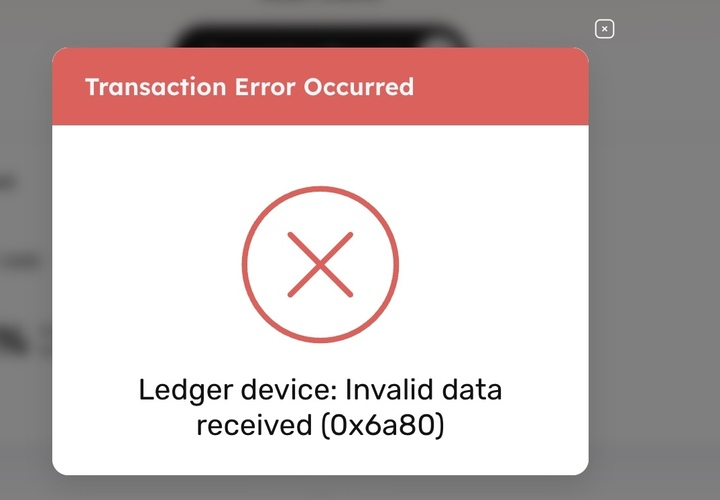
This error typically happens when redeeming BTC after the staking period ends. It means that something in your setup doesn't match the requirements for a successful redemption. Below are the known causes and how to fix them:
-
Incorrect Ledger App
- Make sure you are using the Core app on your Ledger device, not Bitcoin, Ethereum, or any other app.
- Update Ledger Live and your device firmware to the latest/supported version. Make sure to restore all your accounts after updating.
-
Wrong BTC Receiving Address Used
-
The "BTC Receiving Address" must be the original staking address you used when you first staked your BTC.
-
Using a new or different address will result in this error.
-
How to find your original address: Check your transaction history in Ledger Live, on a block explorer (like mempool.space) or using the Core Bitcoin Tx Decoder.
-
-
Not the Primary Staking Address
-
If you have multiple BTC accounts under your Ledger wallet, the system will only detect your primary (original) staking address.
-
Be sure to connect to the same account and address used during the original staking.
-
-
Unsynced Ledger or Browser Cache Issues
-
Refresh the staking site and reconnect your Ledger.
-
Clear your browser cache or try using a different browser.
-
8. How do you set up a Bitcoin address on a Ledger device using Ledger Live?
-
In Ledger Live, click "My ledger" tab and connect your Ledger drive
-
Search and install the Bitcoin app on your Ledger device.
-
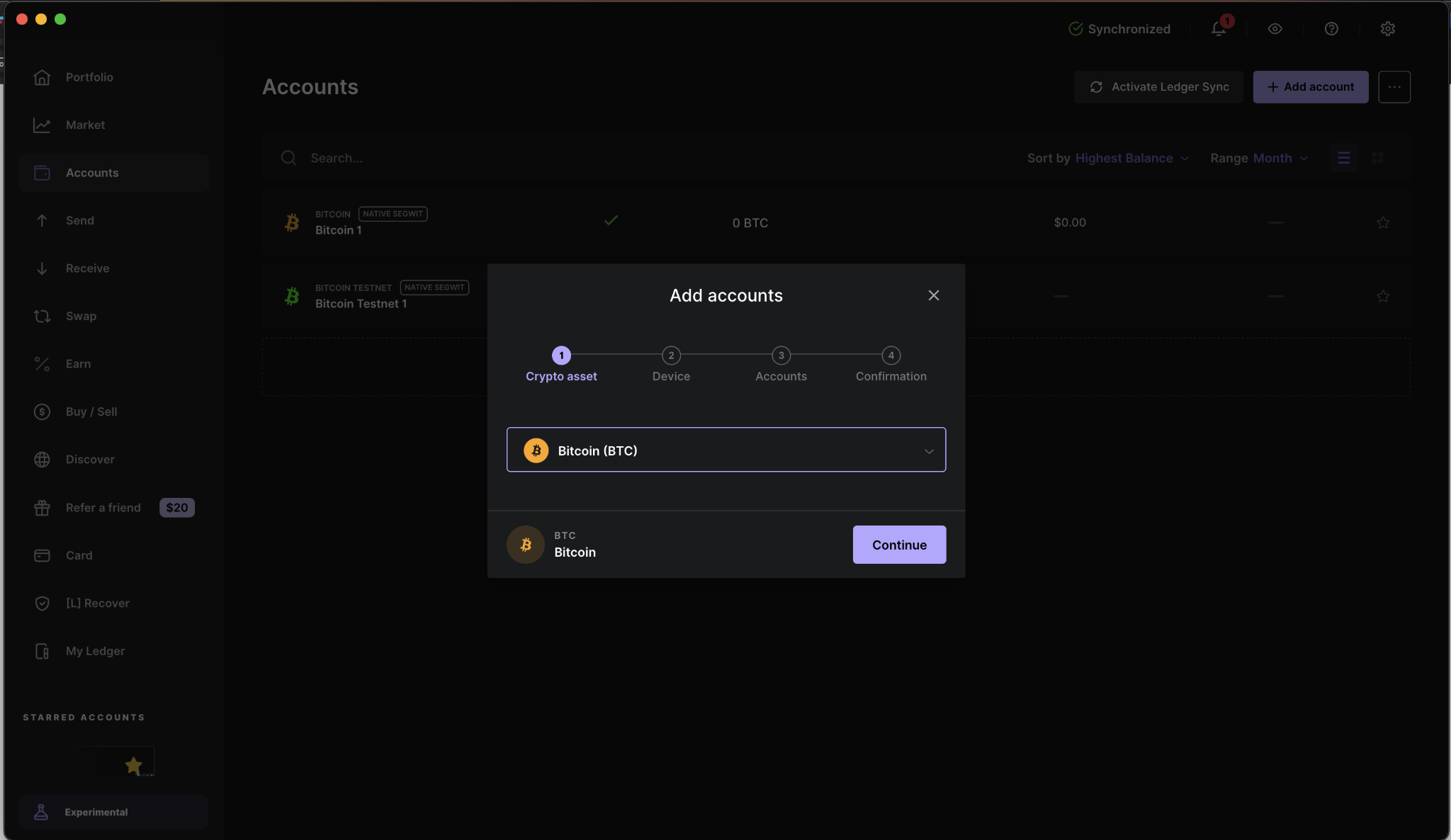
Navigate to the Accounts tab and click Add Account.
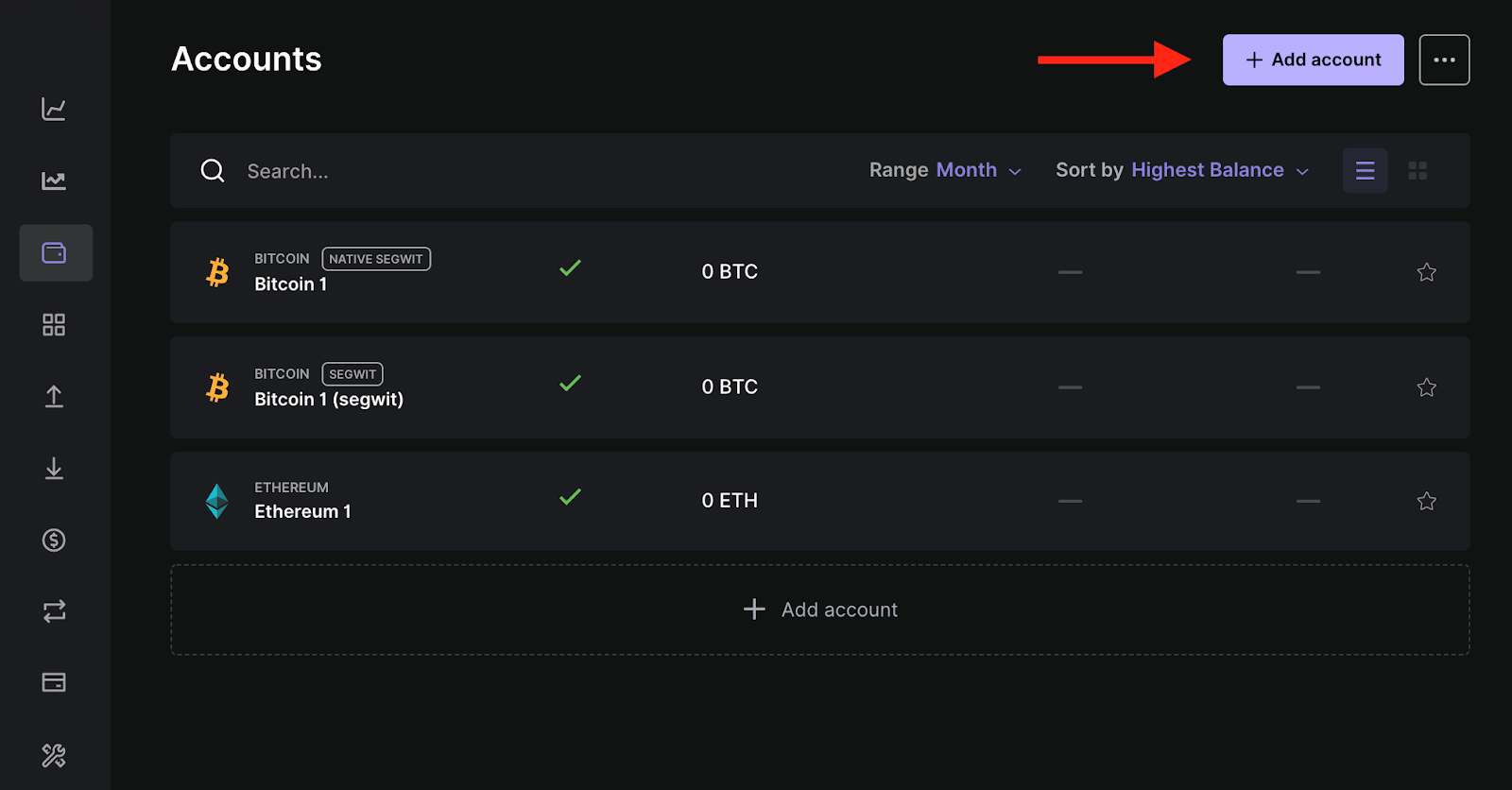
- Search "Bitcoin" and select "Bitcoin (BTC)". Press continue.
-
Approve the connection for Ledger Live on the Bitcoin app through your Ledger device.
-
Select the Native Segwit account type.
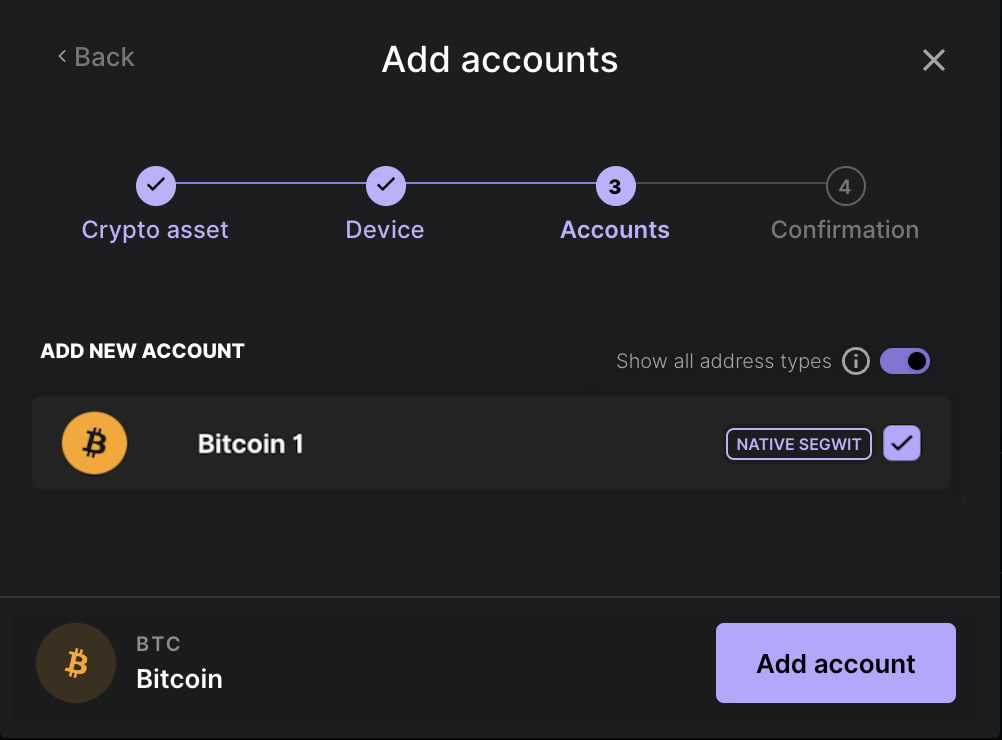
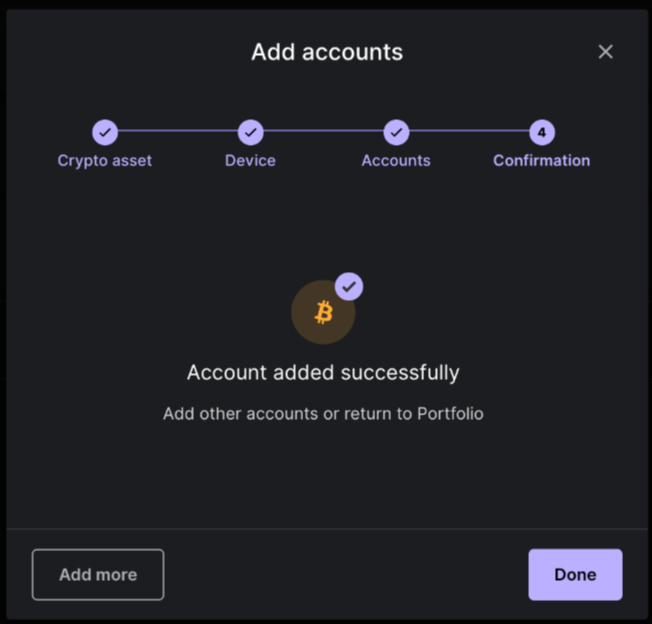
- You have successfully added a Bitcoin account to your ledger device using the Bitcoin app. For more details on setting up your first Bitcoin Account on a Ledger device, refer here.
9. How do you set up a Bitcoin address on a Ledger device using Xverse Wallet?
- Connect your Ledger device to the Ledger Live application on your computer. Click on the Account title on the Xverse wallet.
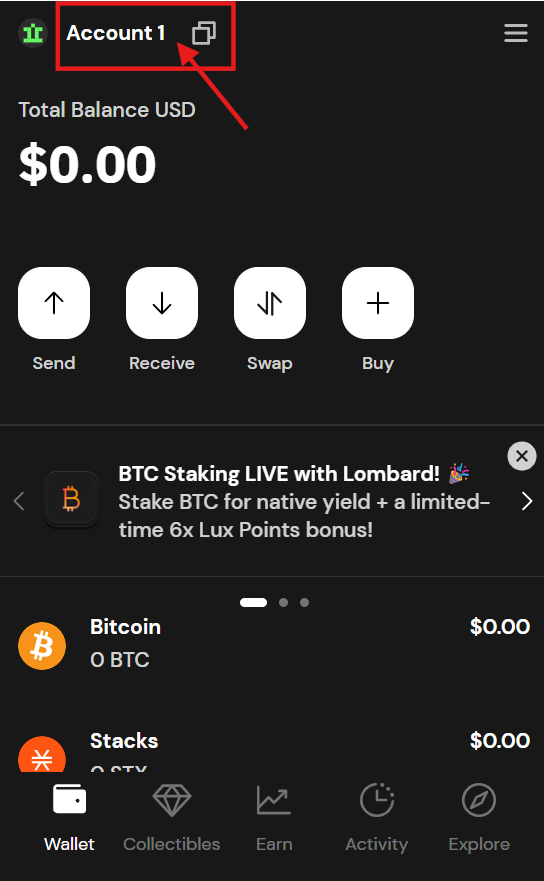
- Click on the Add hardware wallet account.
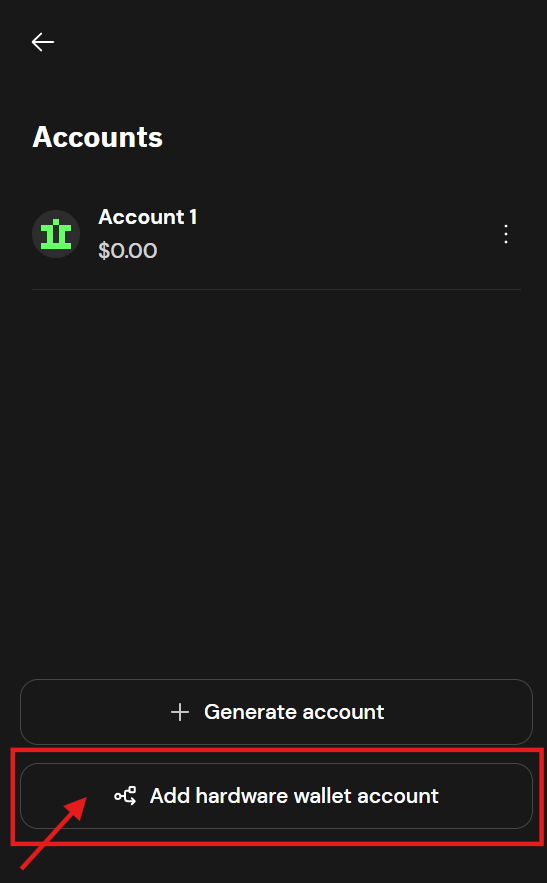
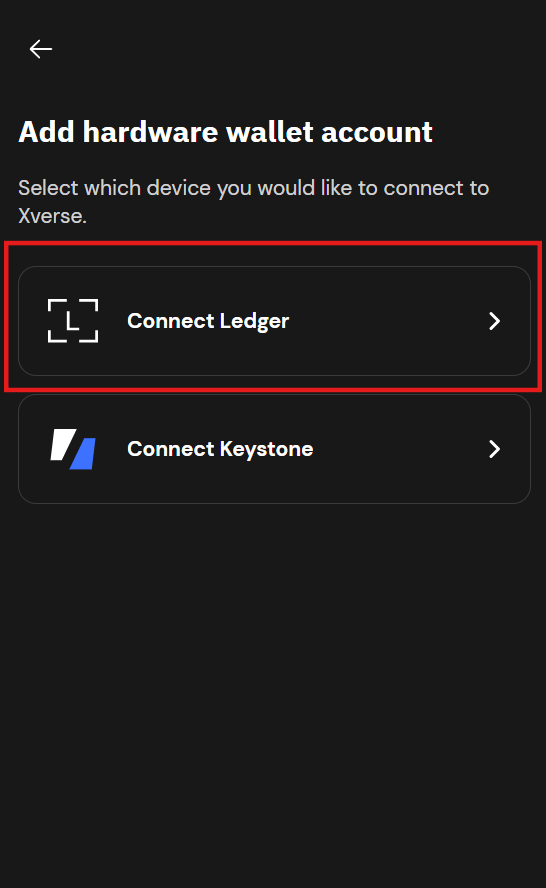
- Select Connect Ledger from the listed devices.
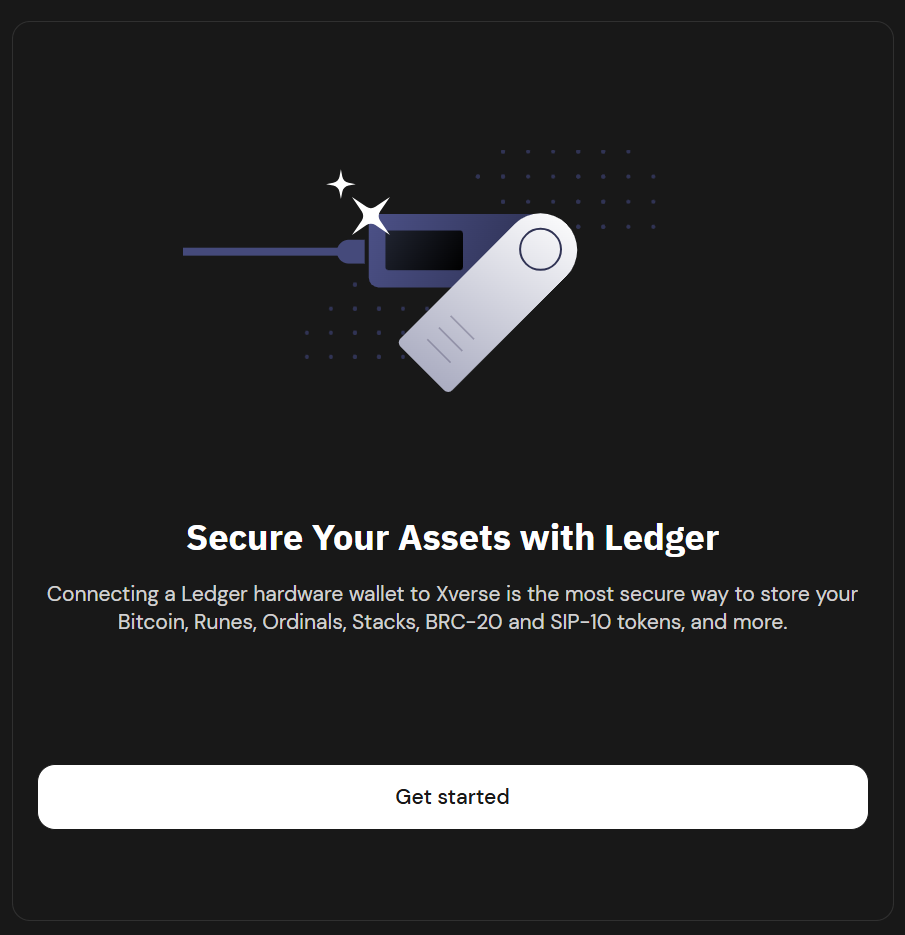
- Navigate through the setup wizard for setting up the account. Click Get Started.
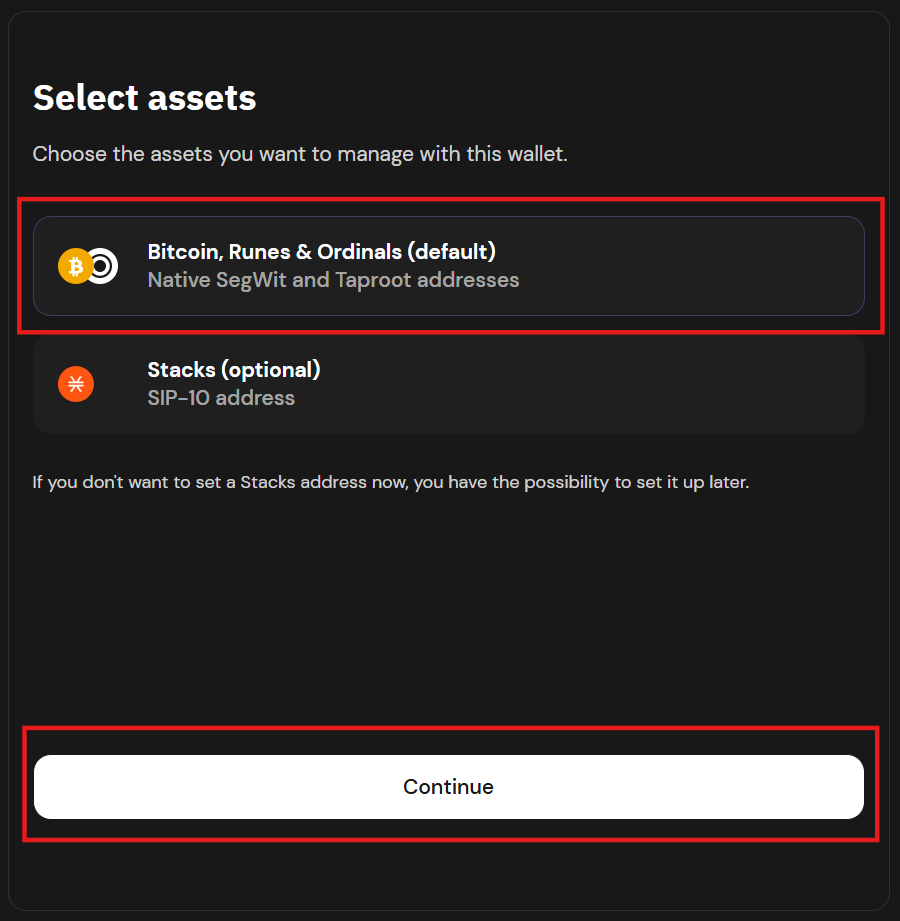
- From the Select Asset model, select the Bitcoin, Runes & Oridnals option. Click Continue.
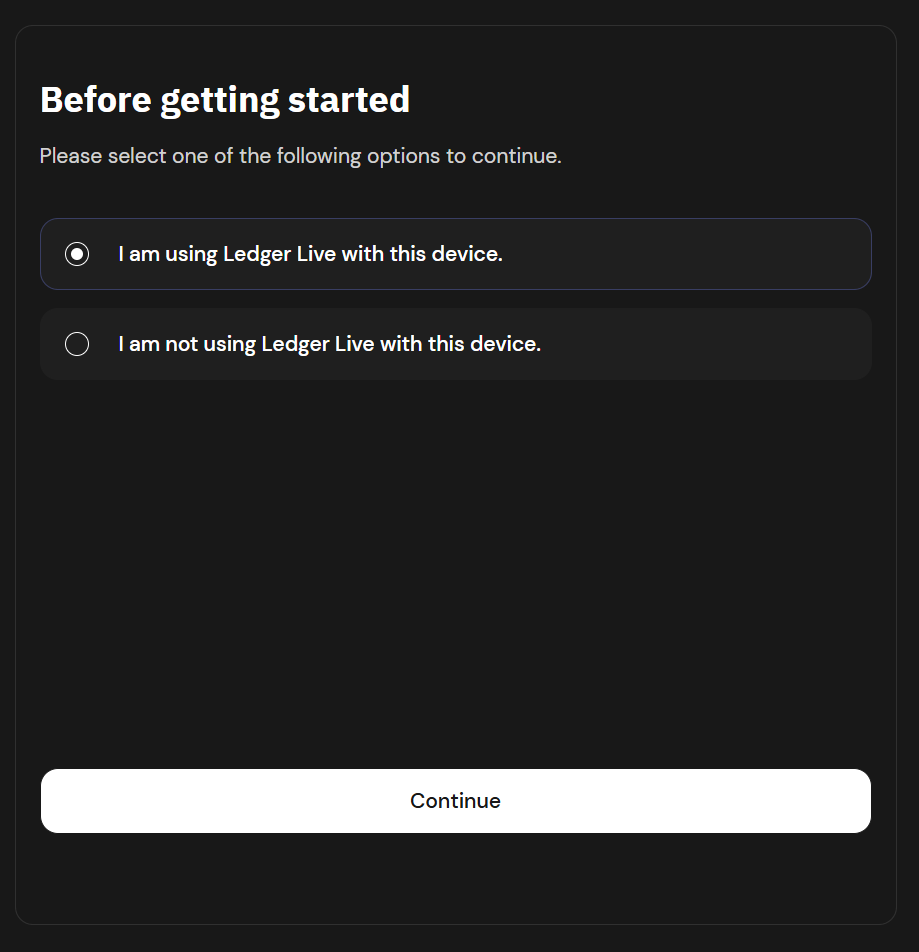
- Proceed by selecting I am using Ledger Live with this device.
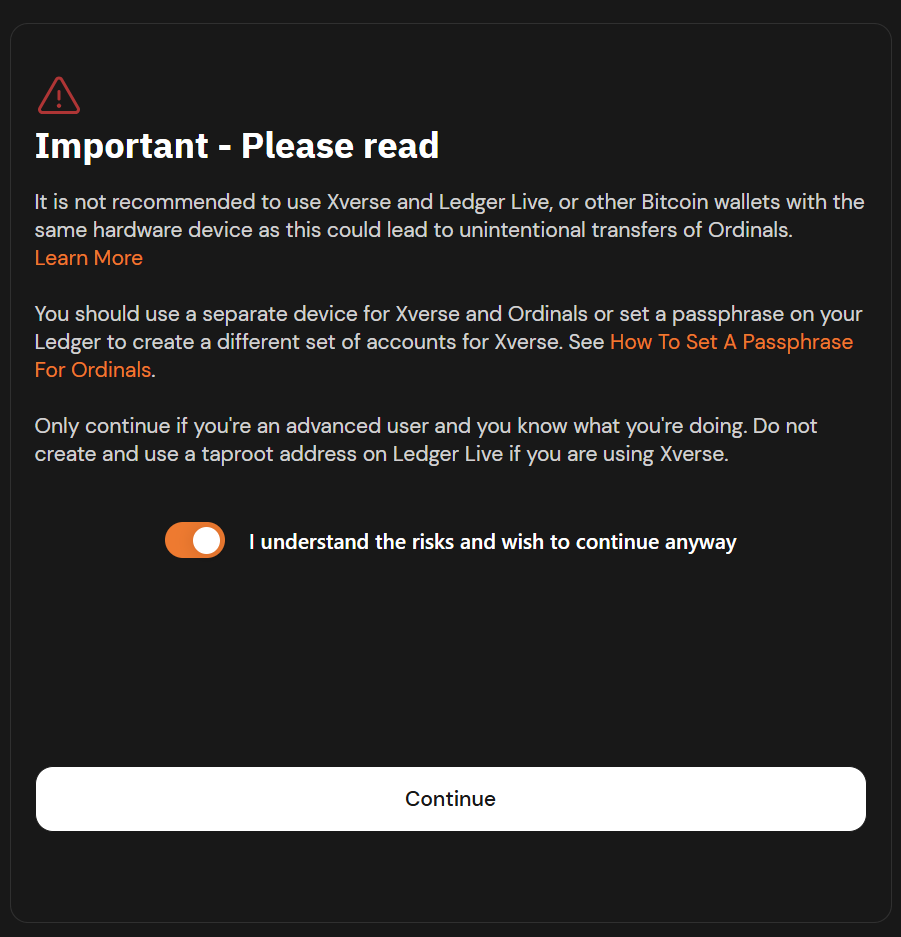
- Acknowledge the Risk Notification.
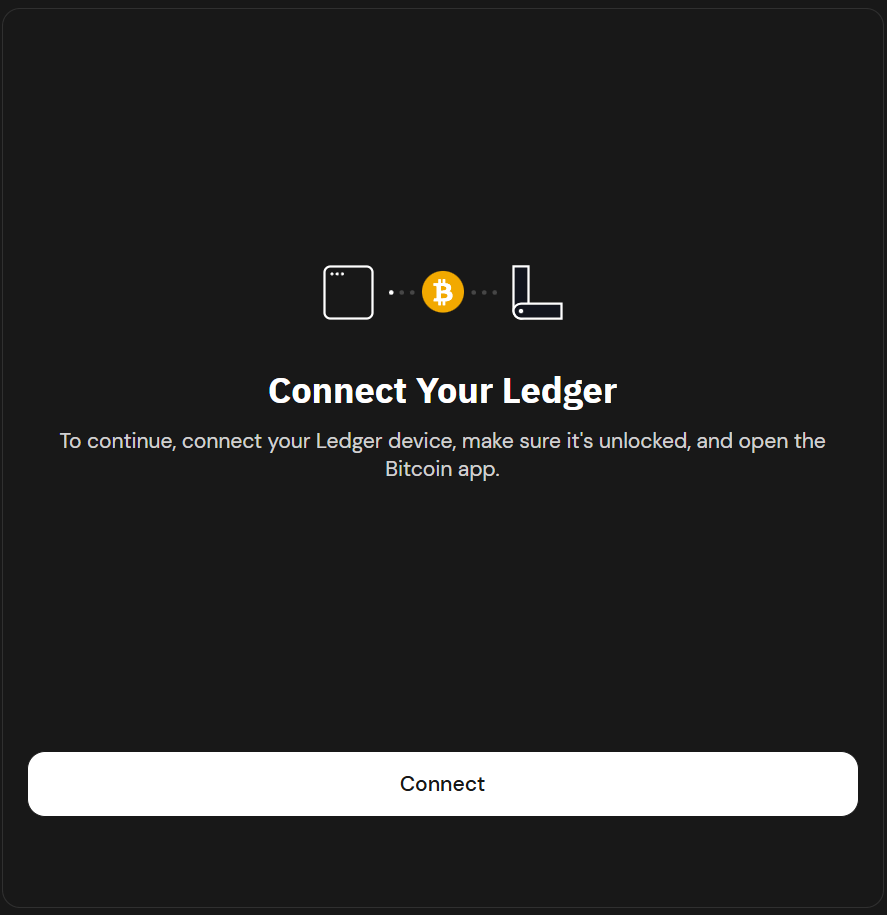
- Make sure your device is unlocked and the Bitcoin app is open. Click Connect. Select your device from the device list.
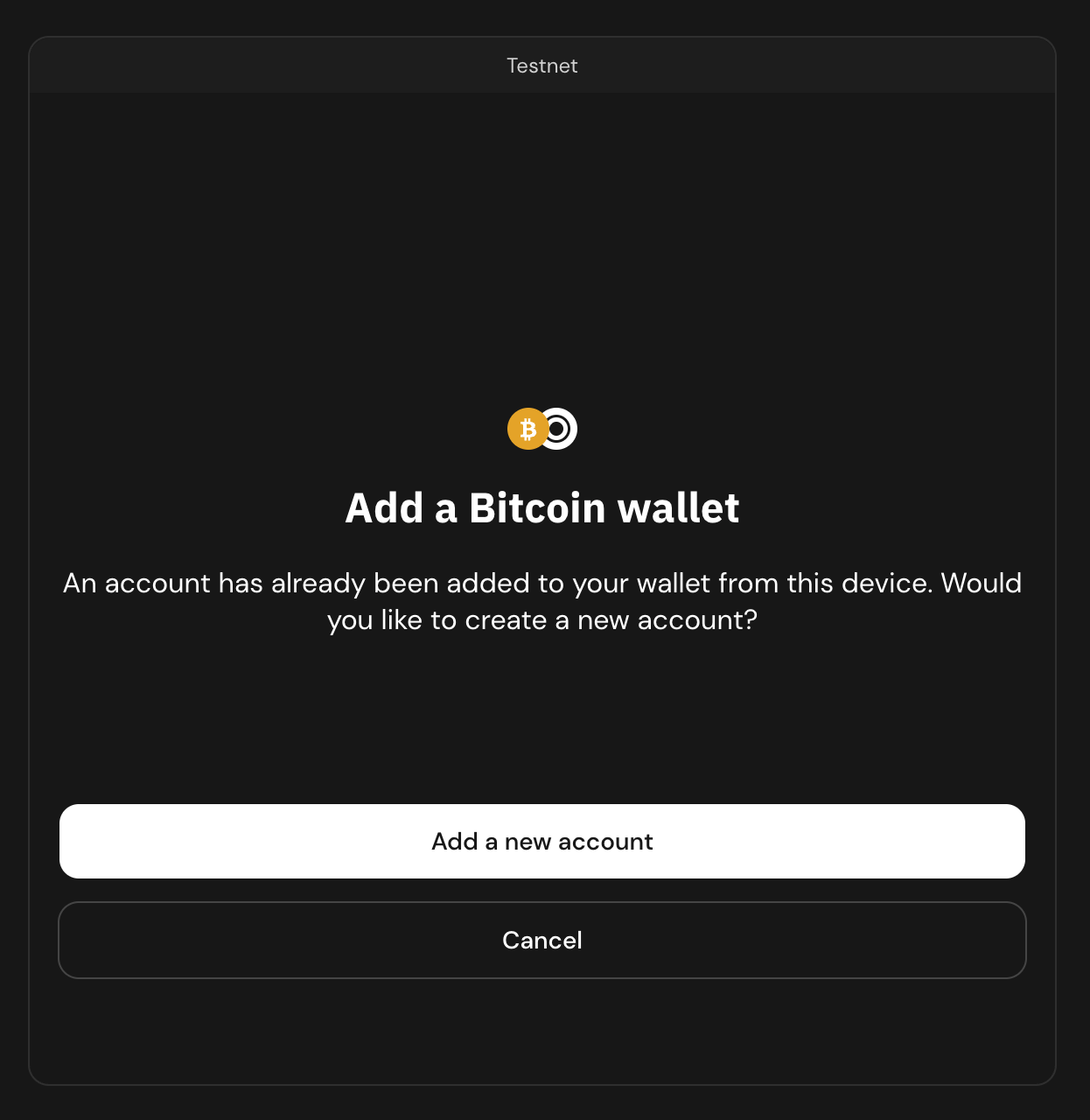
- Choose to add a Bitcoin wallet by clicking on Add new account.
- User will be prompted to confirm the Ordinals address on their Ledger device.
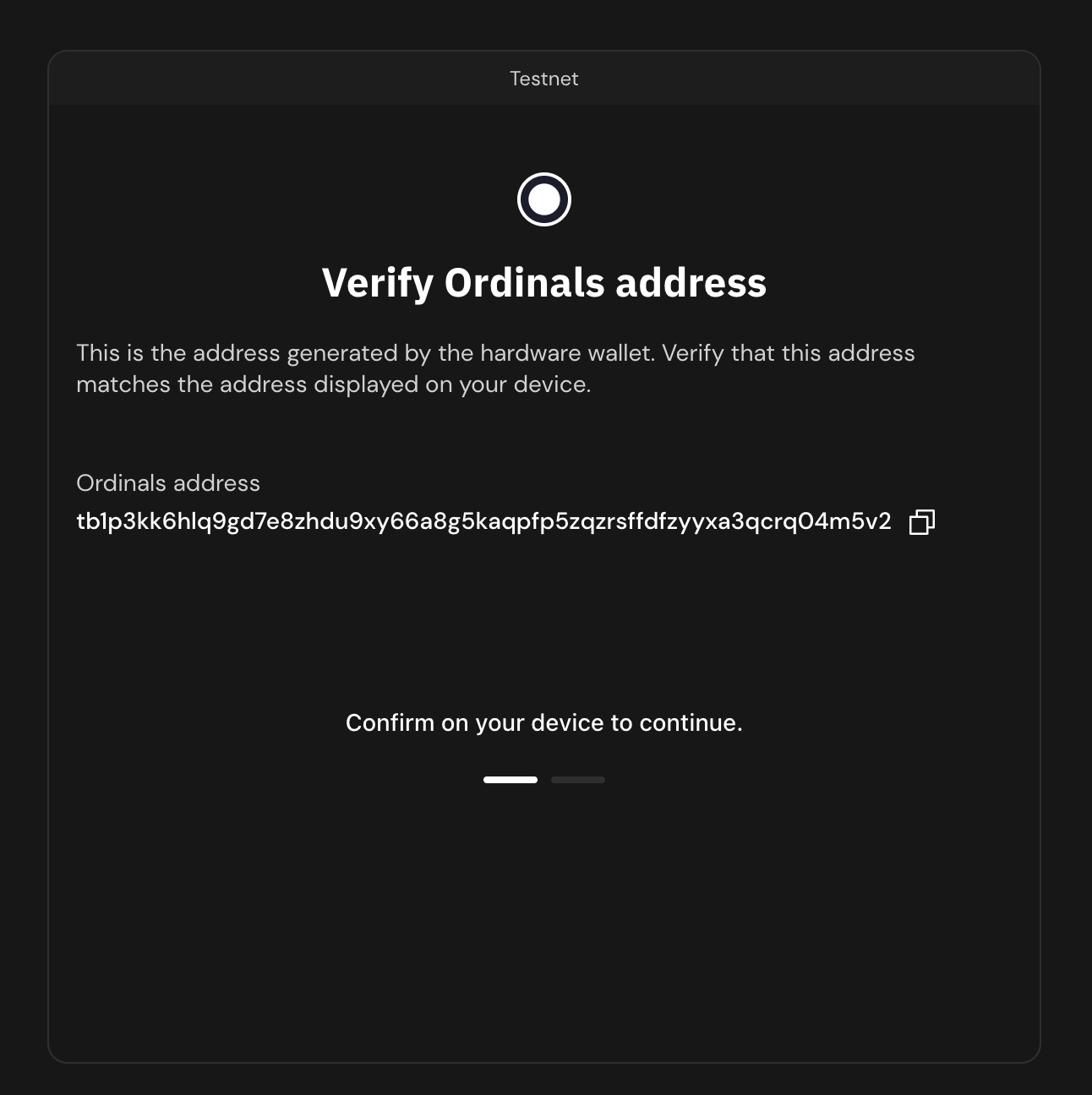
- Continue on the ledger device to confirm the address
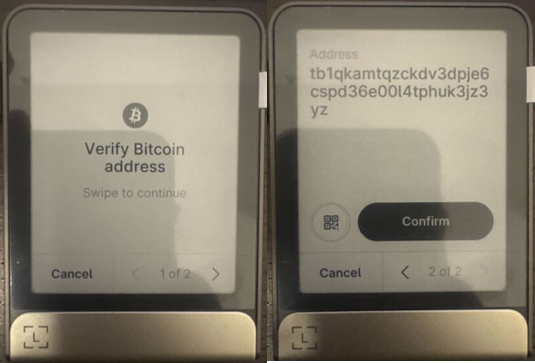
- User will be prompted to verify the Bitcoin receiving address on their Ledger device.
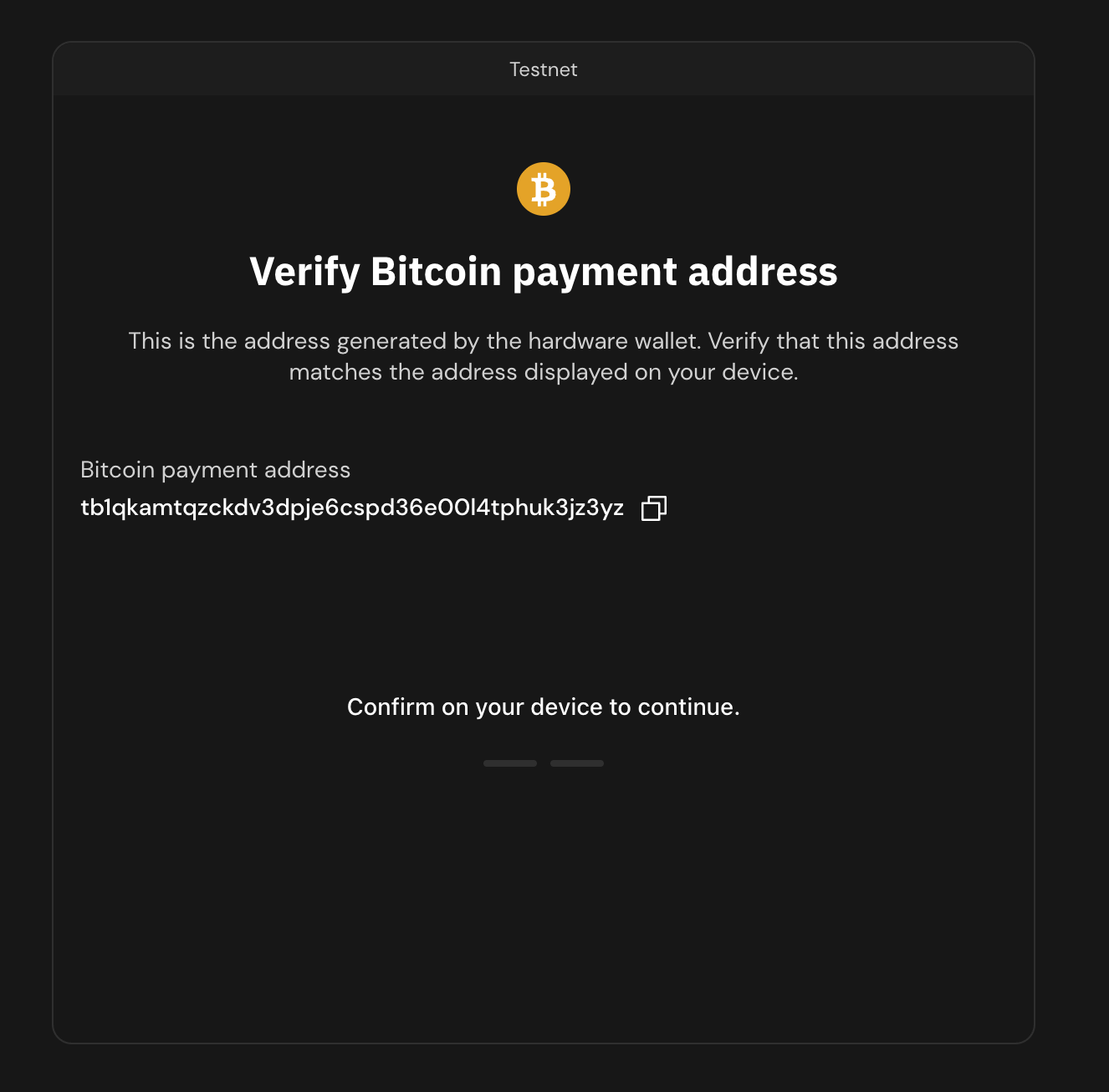
- Continue on the ledger device to confirm the address
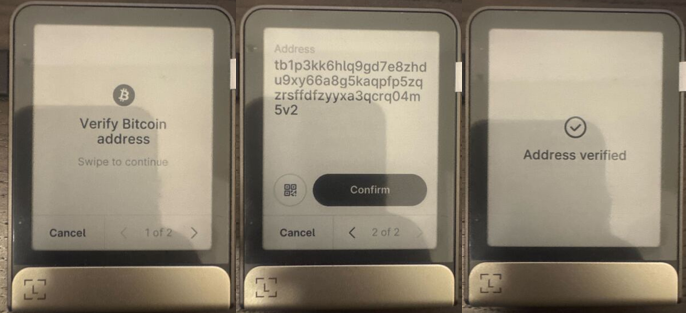
- Once confirmed, the user will be prompted for successful set of wallets
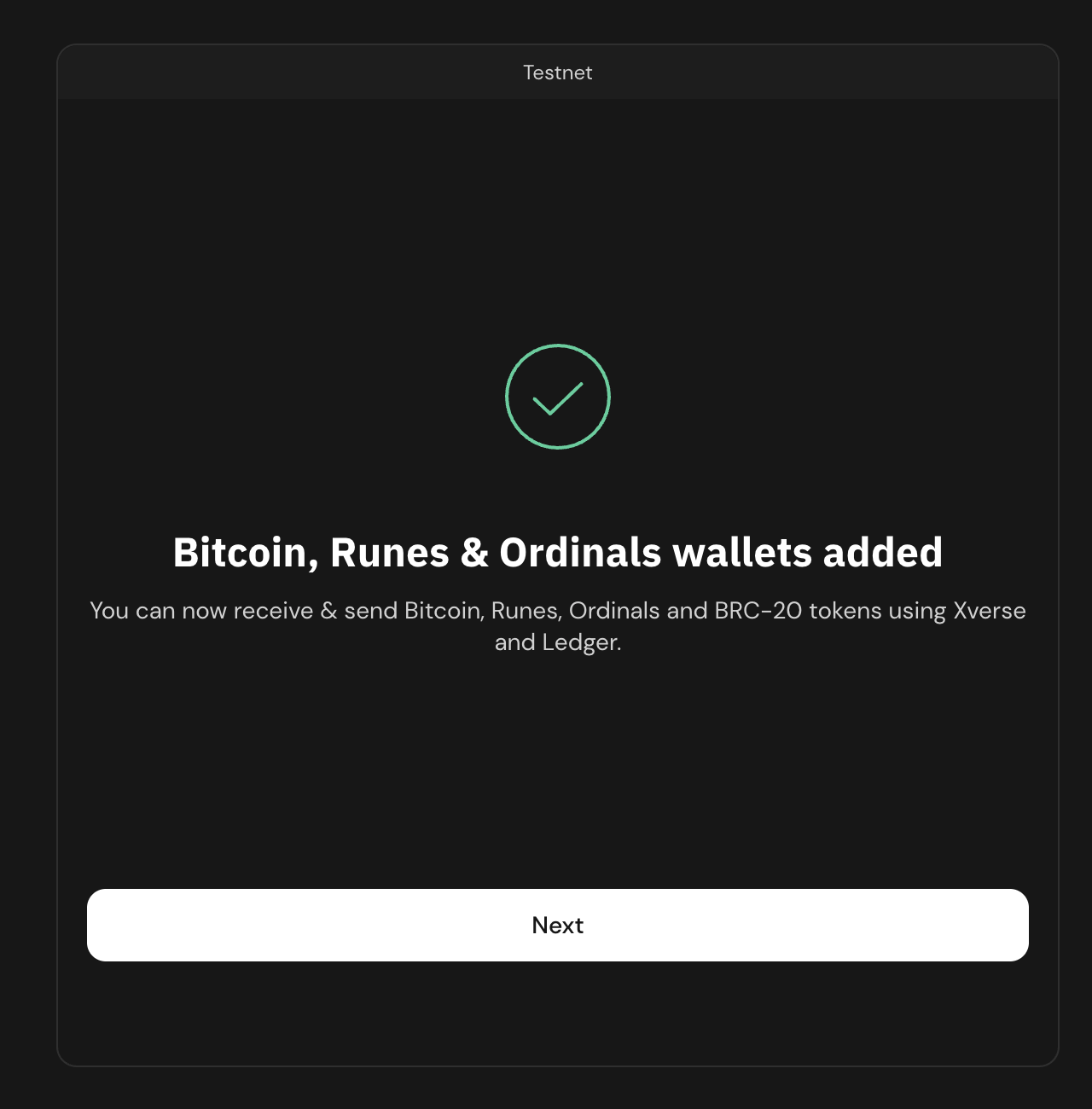
- Specify the wallet name that you want the account to appear on Xverse.
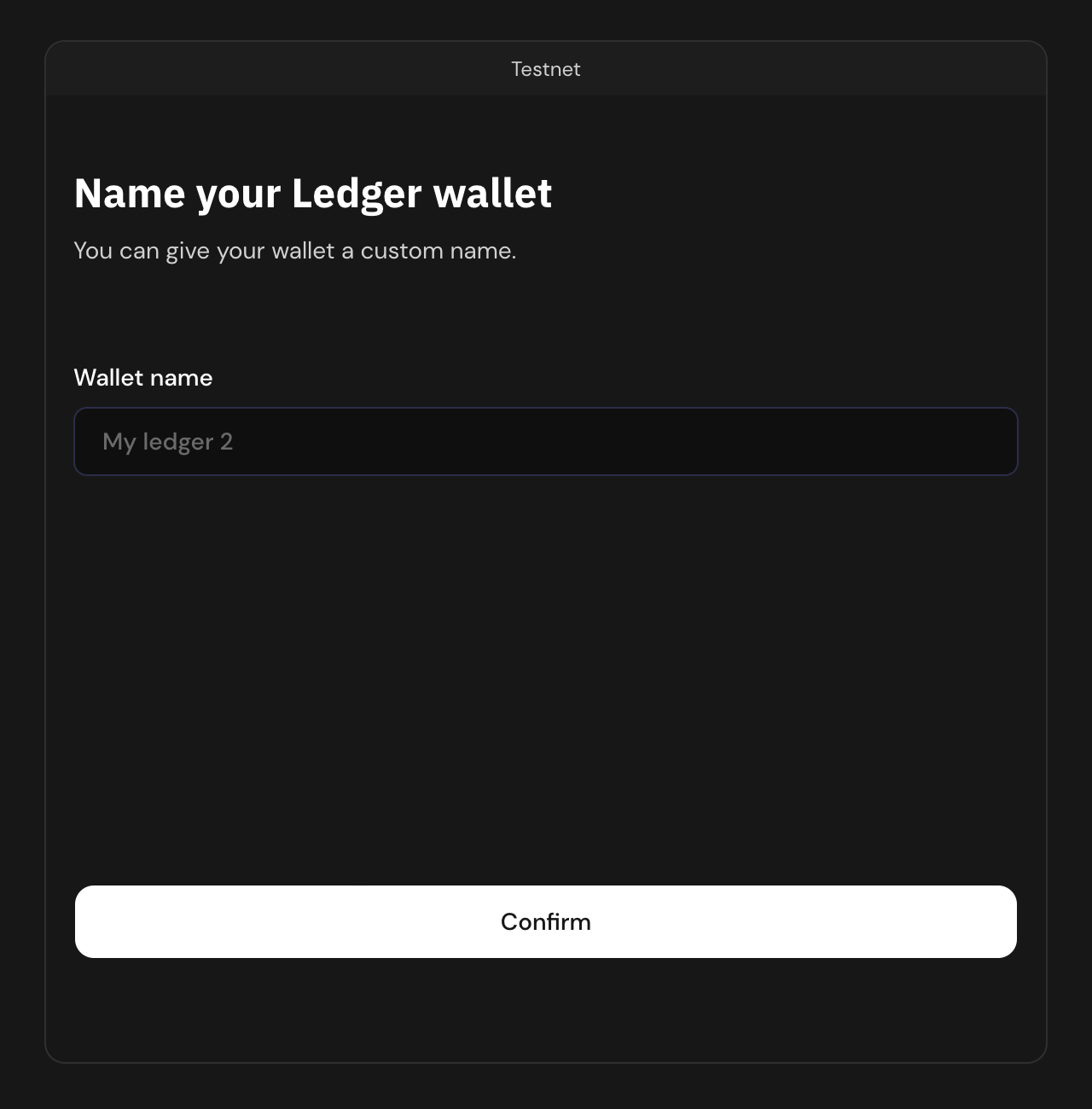
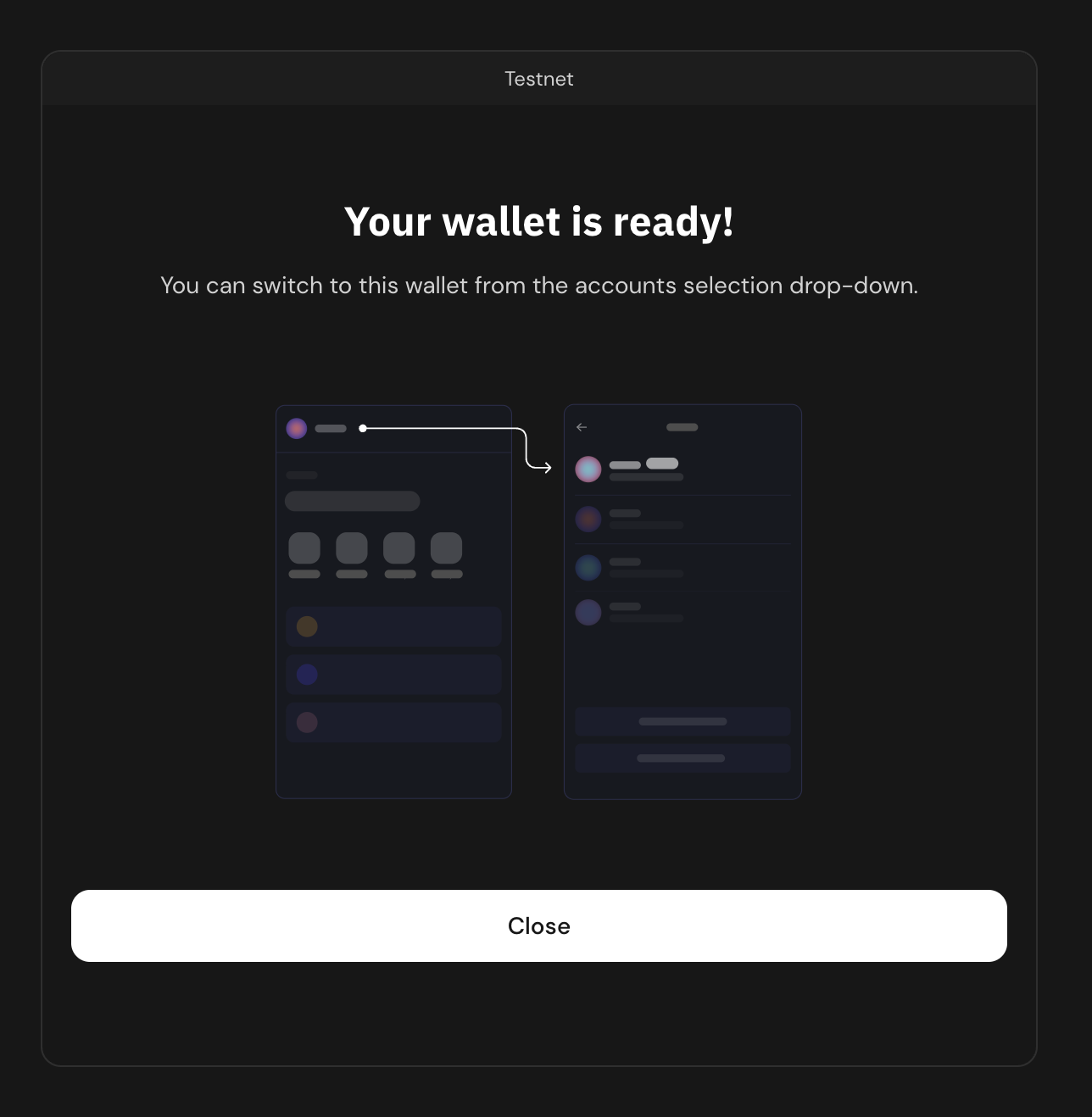
- Click "Confirm" to proceed. The ledger device's Bitcoin address is now added to your Xverse wallet by the name you specified in the previous step. Note this name is just for Xverse and will not be reflected in Ledger.
10. I have multiple Bitcoin addresses on my Ledger device. How to identify the primary account?
-
Connect your Ledger device to the Ledger Live application on your computer. Navigate to the "Accounts" tab.
-
By default, the accounts are listed in the order of creation.
-
Alternatively, from the listed accounts, click on the Bitcoin account.
-
Click on the "Settings" icon in the top right corner of the account details page.
-
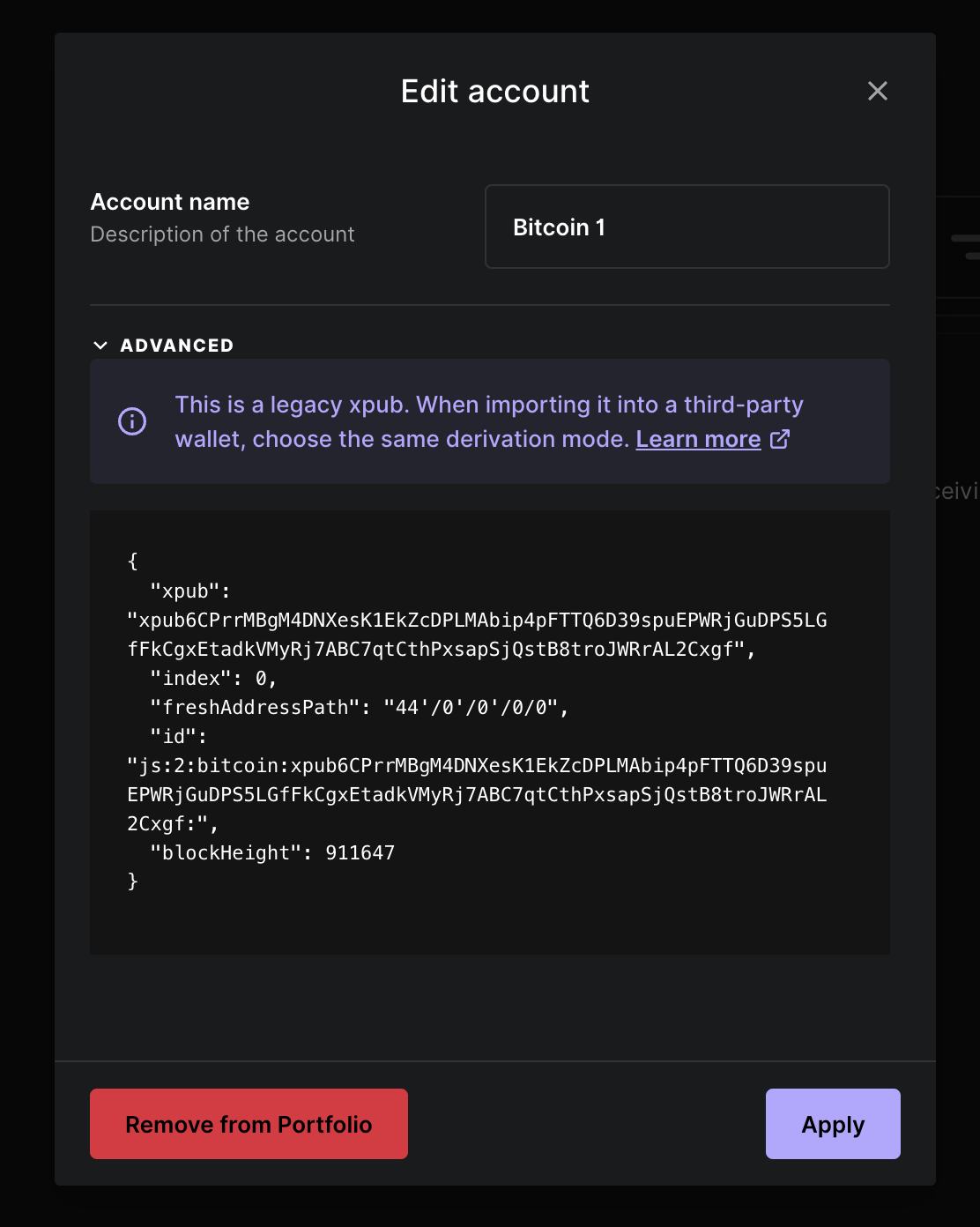
Click "Advanced" on the "Edit Account" modal.
-
If the "Index" value is set to 0, the account is your primary account.
11. Can we use any other wallet other than Xverse to set up a Bitcoin address on Ledger devices for staking Bitcoin on Core?
Currently, only Bitcoin addresses generated through Ledger Live and Xverse Wallet have been thoroughly tested and verified for compatibility. Addresses created using other wallets have not yet been tested, and functionality cannot be guaranteed. Users choosing to proceed with untested wallets should do so at their own risk.